

See who’s online, when, and for how long.
Teams presence tracking with history, for managers of remote and hybrid teams.
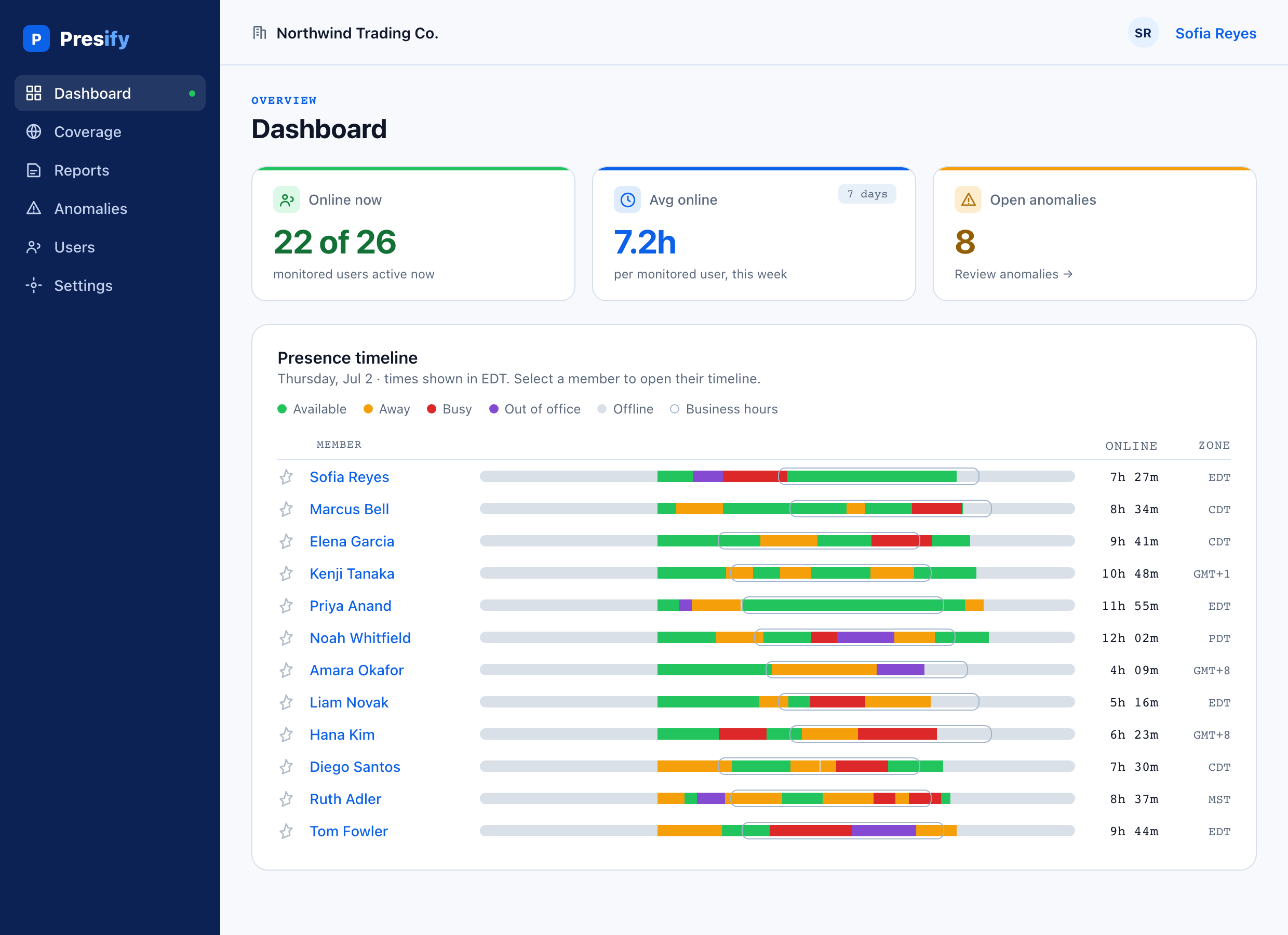
The green dot shows one moment. It isn’t the whole story. Presify keeps the history, so you can see who’s green for hours without a break, and who’s online late into the evening.
Free 7-day trial · no credit card · nothing to install · five-minute setup
The problem
The rest of the story.
Teams shows only the current status and keeps no history. Someone can stay green all day and barely be around: a mouse jiggler keeps Teams green. Someone who always looks yellow might be doing their best work at 11pm. Only the history shows the pattern behind each.
Most monitoring software installs an agent on every laptop and records screens. Presify reads the presence Teams already has: nothing to install, no screenshots, no keystrokes, no message content. It’s the lightweight way to monitor Teams presence.
Need screenshots, keystroke logging, app and URL tracking, or timesheets? Presify isn’t that tool. How Presify compares to employee monitoring software.
What Presify adds
The same signal, with a memory.
- A timeline for every person you track: who’s online, when, and for how long, day after day.
- Online-time totals and trends per person and per team, with up to a year of history by plan.
- Six automatic flags for presence that looks gamed, each with the math behind it (all six on Pro and Scale).
Presence isn’t productivity. Presify gives you a directional read on when people are online and how much, and flags patterns worth a look. What you do with it starts with a conversation.
Already have the Microsoft 365 admin center reports? Those count actions: messages sent, meetings attended. Presify answers a different question: who was online, when, and for how long? See how Presify compares to the built-in M365 report.
See the pattern
Open any day and read it minute by minute.
Click a person, pick a day, and see every status change on a full 24-hour timeline, framed by their own office hours in their own time zone. The calendar browses your plan’s whole retention window (up to a full year of history) and marks the days that stand out.
The timeline covers all 24 hours, so someone who does their best work late isn’t judged by how their dot looks at 2pm.
Spot presence that looks gamed
Always green isn’t always there.
A mouse jiggler or a keep-alive script can hold Teams on Available all day. Presify checks each tracked person’s history for six unusual presence patterns, four of which (unbroken Available, no idle time, robotic regularity, no activity variation) are what those tools tend to leave, and flags the days worth a look. Standard includes the Idle suppression flag; all six, with the math shown, run on Pro and Scale.
A flag is a pattern, not proof: overnight presence can be a keep-alive script left running or someone genuinely putting in late hours. That’s why every flag links to that day’s timeline. Check it before you judge, and start with a conversation.
See all six flagsHow it works
Five-minute setup. Nothing to install.
Connect Microsoft once
Sign in with your Microsoft 365 work account and approve one read-only admin consent. If you run the business, you can usually approve it yourself. No new passwords, no separate signup.
Pick who to track
Choose exactly who to track from your directory and confirm your team has been told (Presify includes a notice template). Guests and disabled accounts are excluded automatically.
Read the pattern
Presify samples presence on a short, regular interval and builds the history from that moment on: timelines, online time, and flags for presence that looks gamed. Nothing is installed on anyone’s computer.
On Pro and Scale: coverage
Plan around when your team overlaps.
The same history powers a planning view. Coverage turns a week of presence into a heatmap of when people are on, in whatever time zone you pick, and marks the window when everyone overlaps. Handy for finding the best time for a live meeting across time zones.
Explore the featuresOverview
See Presify in action
A short walkthrough: a week of presence on one timeline, the flags for presence that looks gamed, the read-only setup, and the reports.
What you get
The pattern, the flags, and nothing to install.
Everything is read-only and tenant-isolated. Presify reads presence, never message content.
Presence timelines
Every status change for every person you track, on a 24-hour day view. The whole workday and week, not just the moment you happen to look.
Online time & trends
Online-time totals for the whole team, by day and by week, so you see the trend and can put it in a report.
Per-person insights
Weekly and monthly totals, a multi-week trend, the after-hours split, and each person’s typical rhythm.
Presence that looks gamed
Six automatic flags for presence that looks gamed, from unbroken Available to robotic regularity. On Pro and Scale, each flag shows its math.
Five-minute setup
One read-only Microsoft sign-in, nothing to install on anyone’s laptop. It reads Teams, not the device, so it works wherever people use Teams.
Read-only by design
Presence status and activity only, plus the directory basics and Outlook time zone needed to label it. No screenshots, no keystrokes, and never message, chat, call, file, or calendar content. Every record is scoped to your tenant.
Reports & exports
Turn presence into Excel or PDF reports, schedule recurring ones, and export the underlying data as CSV.
Ask your AI assistant
Presify is an MCP server: ask Claude, ChatGPT, or Copilot who was online and when, with the same read-only permissions.
Coverage & overlap
A weekly heatmap of when your team is online, and the window when everyone overlaps across time zones.
Pricing
Simple, flat pricing.
Tiers are sized by how many people you track, and each step up adds longer history and more features. Flat monthly pricing, a discount when you pay yearly, and no metered usage or surprise overages.
See the pattern behind the green dot.
One read-only Microsoft sign-in, about five minutes, and presence history starts building from that moment. Try it on yourself free, then add your team on any paid plan.
Free 7-day trial · monitor yourself · no credit card required
Payments are processed by Stripe. Cancel anytime; access continues to the end of the paid period. Billing terms.